
FIRST DESKTOP APP POST · LINUX · FLATPAK
A clearer view of the audiobook library I already own.
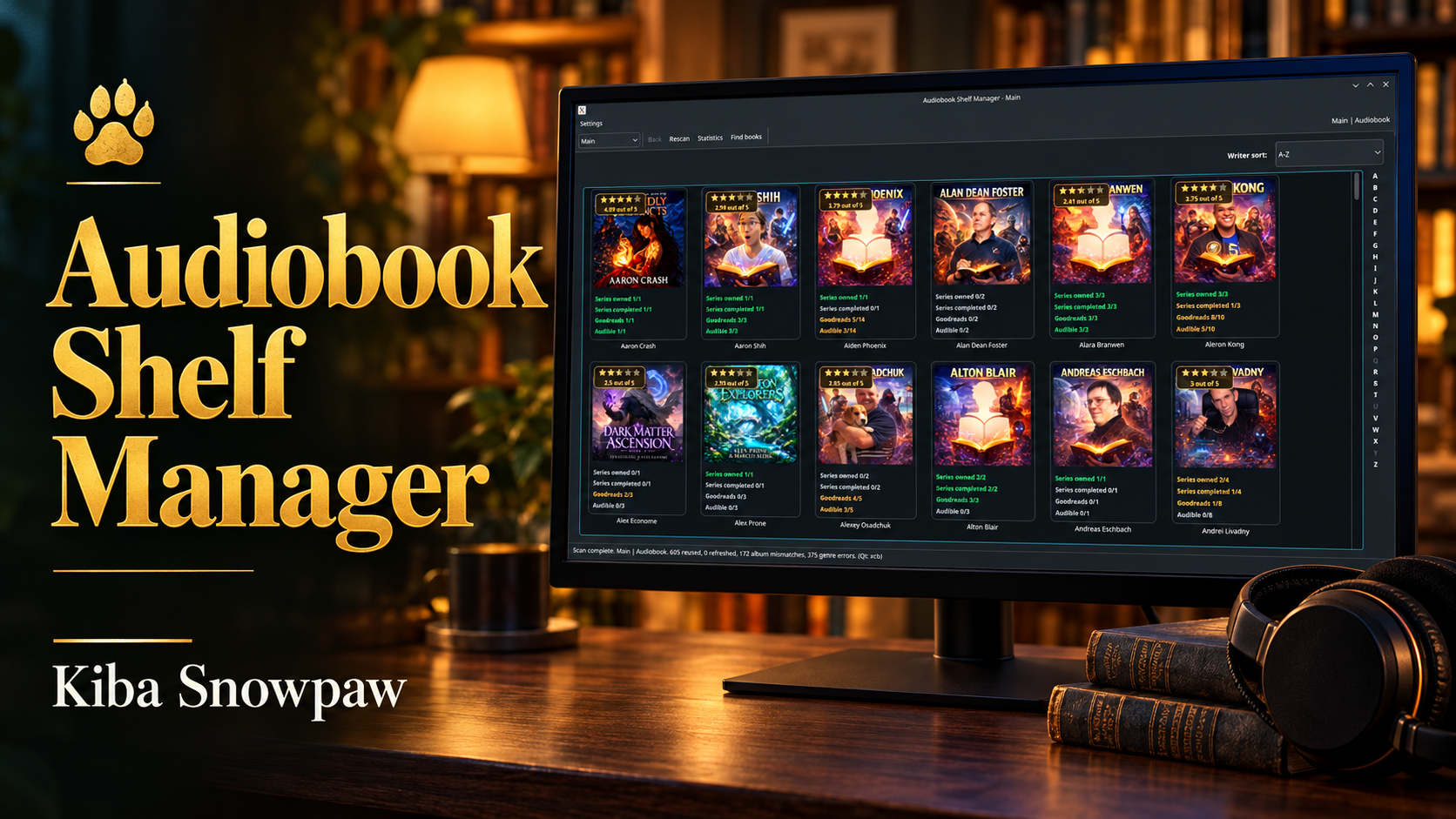
Authors, series, covers, MP3 tags and collection progress—all brought into one Linux desktop app.
A note from me now
This was my first post introducing AudiobookShelfManager as a desktop app, following the earlier web-based tool. I have taken the program much further since I wrote it. While cleaning up my old WordPress posts, I wanted to keep this introduction as a record of that stage.
The features, examples and plans below describe that early build. The ideas I listed for later are part of the project’s history; they are not a list of what is missing from the program now.
Why I started building it
Maintaining a local audiobook collection means dealing with a lot more than pressing play. Titles and authors need correcting. Series need a sensible order. Covers go missing. Filenames become inconsistent. And after listening, I still want to keep track of what I have finished and whether I have updated Goodreads or written an Audible review.
I wanted those jobs together in one place: a visual library I could browse, an editor for the files themselves, and a useful overview of the collection. The tools I had tried did not bring my particular workflow together, so I started making the app I wanted to use.
AudiobookShelfManager became a Linux desktop application built with Python and Qt/PySide6, packaged through Flatpak. The aim was practical: make my own audiobook folders easier to understand and maintain.
Browse
Find authors and series through cover tiles, with collection status visible alongside the artwork.
Organize
Correct MP3 metadata, work with covers and turn inconsistent filenames into a readable pattern.
Track
Keep read status, expected collection counts and Goodreads or Audible tasks together.
My local build and the public repository
The version installed on my own system was ahead of the public GitHub version. In this post, the saved multi-folder library, expanded sorting controls and embedded tracking refer to the local build I was describing. A public checkout may have a different set of features or controls.
If you want to try the public project, check the current README and the version you are building. That distinction matters when comparing these early notes with the code available online.
One gallery for several audiobook folders
My local build could scan several library roots into one combined gallery. That let me keep store-bought audiobooks, homemade audiobooks and older archives in separate places while browsing them together.
The settings window let me add and remove folders, move them up or down, and save the selected roots locally so they could be restored later. A General page was also prepared for future settings.
Within each root, the library followed a simple structure:
| Folder level | What it contains |
|---|---|
| Library root | Author folders |
| Author folder | Series or album folders |
| Series or album folder | MP3 files and their cover images |
Some screens still used Artist and Album wording from music metadata. In this workflow, those usually meant the author and the series or grouped audiobook folder.
Sorting that helps me decide what to work on
A cover gallery is useful for browsing. Sorting it by collection status also helps me find the parts of the library that need attention. The local build described here offered these choices:
Author / artist view
- A–Z
- Newest or oldest updated
- Most or least completed series
- Most or fewest series
Series view
- A–Z
- Newest or oldest updated
- Completed or incomplete first
- Most or least progress
- Most owned or missing most
That made it easier to choose a task: find an incomplete series, check a recently changed folder, or continue working through a collection.
Keeping track of the work around listening
I wanted to see several kinds of progress together, with each one keeping its own meaning:
- Read / watched: mark a file as finished and show that progress for its album or series.
- Owned / expected: set the expected number of parts and compare it with the files present.
- Goodreads: record whether I have updated Goodreads for that item; this contributes to its Goodreads status count.
- Audible: record whether I have completed an Audible review. This stays separate from the Goodreads count.
The Goodreads and Audible markers are local records of work I have done. I mark the status in the app; they do not sign in to those accounts or publish reviews for me.
Useful counts on the gallery tiles
These are illustrative examples of the information a tile could show, rather than measured totals from my own library:
| Example display | How to read it |
|---|---|
| Read: 7 / 12 | Seven files marked finished against twelve expected parts. |
| Own / in album: 9 / 12 | Nine files present against twelve expected parts. |
| Goodreads: 4 / 12 | Four items marked as updated on Goodreads. |
| Series completed: 8 / 15 | An example author tile showing eight completed series out of fifteen. |
The important detail is the unit being counted. A folder containing twelve MP3 parts does not necessarily contain twelve separate books. I need to set expectations in a way that matches how that part of the library is organized.
Tracking that can travel with the MP3
Earlier tracking mainly lived in local JSON files. In the newer local build described in this first post, app-specific state could also be written into the MP3 itself, using custom ID3 TXXX text frames:
| Custom field | Purpose in the local build |
|---|---|
ASM_TRACK_ID | Identify the tracked item. |
ASM_WATCHED | Store its read / watched status. |
ASM_GOODREADS | Store its Goodreads update status. |
ASM_AUDIBLE | Store its Audible review status. |
The benefit is that the information can travel with a copied or moved MP3 instead of depending entirely on its old path in a local database. Other software needs to preserve those custom frames for the state to survive retagging.
The local design retained support for older JSON tracking data and migration of useful state into embedded flags. Renaming through the app also carried the local read and review records to the new filename.
Editing the metadata I actually use
The editor worked directly with MP3 metadata. It brought together title, artist / author, album / series, album artist, year, genre, comment, composer, disc number, track number and total tracks.
The comment field gave me somewhere to keep an audiobook description. Track, total-track and disc values helped keep multipart books and series in the right order. The app wrote the standard ID3 fields and saved MP3 tags as ID3v2.3.
This was useful because I could correct the file’s information in the same place where I was checking its cover and collection status.
Readable filenames after saving
After saving metadata, I could have the selected file renamed using this pattern:
NN - Title - Artist.mp3For example:
01 - The Frozen Road - Kiba Snowpaw.mp3The renaming logic removed unsafe filename characters and chose a numbered suffix if the target audio filename already existed. Matching sidecar cover images could follow the audio file’s new name.
Covers belong with the library
I wanted the gallery to use the artwork already in my folders and files. Cover handling brought several sources together:
- Series folder covers: common image names such as
cover,folder,frontandalbum. - Author images: author-level pictures using names such as
artistorartist-cover, as well as common cover names. - Sidecar images: a picture beside an audio file with the same basename.
- Embedded artwork: artwork inside the audio file, with support for embedding a selected image into an MP3.
When one source was missing, the gallery could try another before displaying a generic icon. I was also moving icon drawing and status overlays into helper code to make the interface easier to maintain.
A helper for one particular broken ID3 header
One problem I encountered was an MP3 whose ID3 header claimed a tag size larger than the file itself. The app included a helper for that specific case: locate an audio frame and rewrite the file from there.
That recovery can discard the damaged tag prefix, so it is a specific recovery tool rather than a promise to fix every broken MP3. I would keep an untouched copy before using it.
Before changing the files
I described this build as alpha software. Metadata editing, cover embedding, renaming and embedded tracking write directly to the library files. Keep a backup and try a small copied folder first, especially when comparing your public build with the local features in this post.
Trying the public Linux build
The public project is on GitHub. For the setup that matches the code you are downloading, start with its README.
Build-note update, 9 October 2026: the example below was refreshed against the public manifest and official Flatpak build documentation during this post’s cleanup. The commands are for an Ubuntu or Debian system and install the Flatpak into the current user’s installation.
sudo apt update
sudo apt install git flatpak flatpak-builder
flatpak remote-add --user --if-not-exists flathub https://flathub.org/repo/flathub.flatpakrepo

git clone https://github.com/kibasnowpaw/AudiobookShelfManager.git
cd AudiobookShelfManager

flatpak-builder --user --install --install-deps-from=flathub --force-clean build-dir io.github.kibasnowpaw.BookLibConnect.json
flatpak run --user io.github.kibasnowpaw.BookLibConnect
The public manifest checked for this note still used the internal app ID io.github.kibasnowpaw.BookLibConnect. That older name explains the manifest filename and launch command. If the repository changes them, follow its current instructions.
The builder command installs required dependencies from Flathub and builds and installs the app. Its --force-clean option clears the selected build-dir before building; use that folder for build output only.
To remove the user-installed app:
flatpak uninstall --user io.github.kibasnowpaw.BookLibConnectThis source-build example does not mean the app has a Flathub listing. It uses Flathub for the dependencies needed to build the project.
What I wanted to improve at this stage
My early plans included:
- Clearer public release information and documentation for the local build.
- Search across authors, series and tracks.
- More statistics and a better overview of collection progress.
- More testing across Linux distributions and desktop environments.
- Smoother handling of very large collections.
- Cleanup of older internal names and music-style wording.
- Easier migration of older tracking data.
Those were the things I wanted to work on when I wrote this introduction. Development has moved much further since then, so I am keeping them here as the original direction rather than using them as a current feature checklist.
A tool for the collection I keep myself
This project grew out of maintaining my own files: fixing tags, keeping covers together, organizing folders and remembering what I had listened to or reviewed. Bringing those jobs into one Linux app already made it useful to me.
It was an early build, and I have continued developing it. I am keeping this first post because it shows where the desktop app started and what I was trying to solve.
If that workflow sounds useful to you, have a look at AudiobookShelfManager on GitHub. A star, a test on a copied library, or a clear issue describing a problem or suggestion helps me understand how other people would use it. For the program’s later progress, read the newer posts alongside the public README.